How to Post Daily Real Estate Content to Facebook and Instagram Automatically
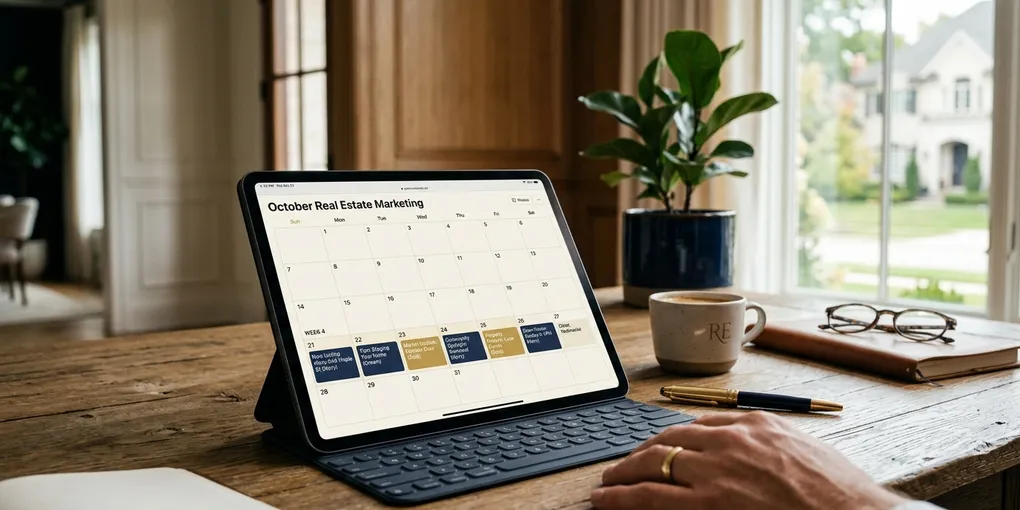
I am terrible at creating social media content consistently. I don’t have time to sit down every day and come up with an idea, design a graphic, write a caption, and post it. Not when I’m also running appointments, following up with leads, and doing everything else that goes into running an active real estate business.
But I know the math. Organic social media leads — the ones that come from people who’ve been watching your content for months — convert at five to ten times the rate of paid ads. Facebook ads, Google pay-per-click, none of it comes close. And organic content is free. You’re just trading time.
So I built a system that does the work without the time.
With one click, this automation generates five on-brand real estate posts, uploads them to Google Drive, and posts a carousel to my Facebook page. I don’t touch Canva. I don’t write captions. I review the output, approve it, and it goes live.
Here’s exactly how it works.
The Core Concept
The workflow is built in Make.com, which is a no-code automation platform. It connects ChatGPT, Canva, Google Drive, and Facebook into a single pipeline.
The flow:
- I trigger the automation
- ChatGPT generates five post ideas as a structured JSON output
- The JSON gets parsed and written to a Google Sheet
- Each row in the sheet gets sent to Canva, which generates a branded graphic
- The graphics get downloaded from Canva and uploaded to Google Drive
- I review the posts and change a status field to “Approved”
- A second automation reads the approved posts, bundles the graphics, and posts a carousel to Facebook
The output is a real, live Facebook post with a caption and five images — all generated from one button click.
Why JSON Matters
When you prompt ChatGPT for multiple pieces of content, it defaults to returning a block of text. That’s fine for reading, but it’s very hard to parse programmatically. You can’t reliably extract the title from the body from the caption when it’s all mixed together in prose.
The fix is to tell ChatGPT to return its output as a JSON object. In the automation, the prompt specifies the exact structure: title, body, filename, and any other fields you need. When ChatGPT returns clean JSON, Make.com can split that into individual rows and feed each one downstream as a separate item.
You also need to change the response format setting in the OpenAI module to “JSON object.” If you don’t do that, ChatGPT will return JSON-looking text that Make.com can’t parse. It’s a one-setting change that makes the whole thing reliable.
Setting Up the Canva Template
The Canva side requires some one-time setup. You need a Canva Pro account to use the brand template and API features that make this work.
Create a brand template with two dynamic fields: a title area and a body area. Use Canva’s Data Autofill feature to label these fields. The title should be sized to hold roughly 50 characters. The body area should hold around 230 characters. These limits matter — if ChatGPT writes something longer and the text overflows the box, your graphics will look broken.
In your prompt, explicitly tell ChatGPT the character limits. “Title: keep under 55 characters. Body: 230 characters max.” When the AI respects those constraints, your Canva output stays clean every time.
Once the template is set up, Make.com connects to Canva via API and pushes the title and body fields for each post. Canva generates a graphic using your brand template with that content filled in. The graphic gets exported as a JPEG — important, because Facebook and Instagram currently only accept JPEG for this kind of upload — and saved to Google Drive.
The Google Drive Link Problem
There’s a frustrating quirk in this workflow worth knowing about upfront.
When you share a file from Google Drive and copy the shareable link, that link will not work as a direct download URL in an automation. The standard share link opens a preview page, not the file itself.
The correct format for a direct download link from Google Drive is:
https://drive.usercontent.google.com/d/download?id=[FILE_ID]The automation handles this automatically — after uploading each file, it rewrites the URL to this format before storing it in the Google Sheet. But if you’re ever debugging why images aren’t loading in a downstream step, this is usually the reason.
The Approval Step
I added an approval layer to this workflow because AI-generated content occasionally produces something off-brand or just odd. You don’t want to auto-post content without at least a quick review.
The Google Sheet has a “Status” column. When the automation finishes generating the graphics, the posts sit in the sheet with a “Review” status. I open the sheet, look at the Canva preview links, check that the posts look good and feel right for my brand, and change the status to “Approved.”
A separate automation runs that reads only rows with “Approved” status, aggregates all the images into an array, and posts a carousel to Facebook. One post, five images, with the caption from the sheet.
The carousel format outperforms single-image posts consistently. People swipe through multiple images, which signals engagement to the algorithm and keeps them on your content longer.
What You Need to Build This
- Make.com — free tier covers this workflow, though you’ll need to watch operation limits
- Canva Pro — required for brand templates and the API connection
- OpenAI API key — for the ChatGPT step
- Google Drive — free
- Facebook Business account — free
If you want to skip the build entirely, I’m working on an app that handles this entire process — you log in, choose your niche and content focus, click a button, and posts go out. It’s currently in private beta. You can join the waitlist through the newsletter page.
The Content Strategy Behind the Automation
The automation is only as good as the content direction you give it. Right now I’m focused on new construction in Austin, because that’s my current niche and new construction moves faster than resale in my market.
My prompt tells ChatGPT to create five Instagram posts with tips on buying new construction. I specify the city, the tone (approachable and professional), and the character limits. The output is specific enough to be useful — not just generic real estate advice, but content that positions me as someone who knows new construction.
If you’re a relocation specialist, your prompt would focus on relocation tips. If you work primarily with first-time buyers, your content ideas would center on first-time buyer education. The automation adapts to whatever niche you give it.
The underlying principle is that you need to pick a lane. Generic real estate content doesn’t build an audience. Specific content builds a specific audience that eventually becomes clients.
For more on the full tool stack I use for content automation, see the tools page. The Make.com + Canva workflow described here is the third post in a series — if you want to start from the beginning with the Canva template setup, start with the Part 1 post. I share new automation workflows like this every week in the free newsletter.
Liked this article? Get more like it.
AI tools, prompts, and workflows that close deals — delivered in 5 minutes a week. Free, unsubscribe anytime.