How to Automate Real Estate Market Update Infographics with Canva
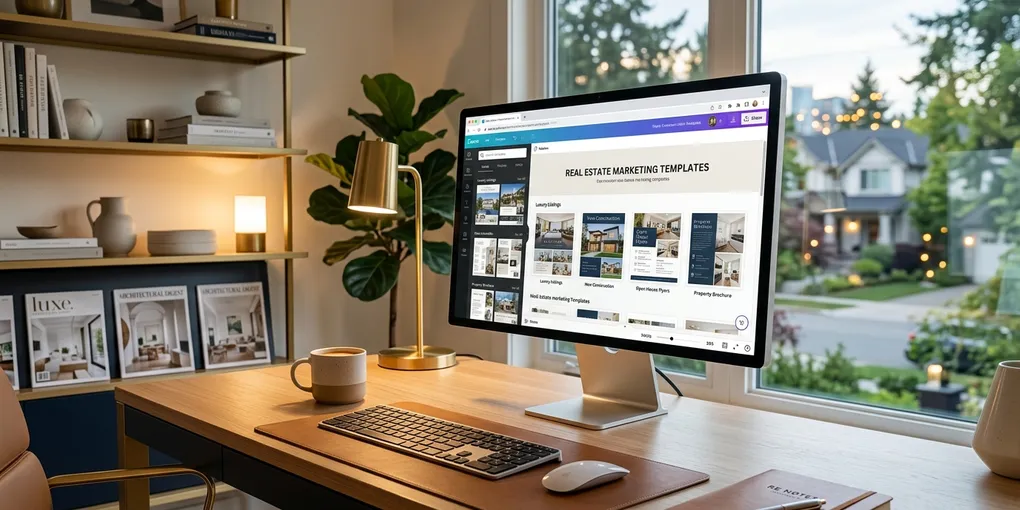
Every month when the new MLS data drops, I used to spend most of a day building infographics. I cover 12 to 15 cities in the Austin metro area — Round Rock, Cedar Park, Pflugerville, Leander, and more. The Austin Board of Realtors provides market stats, but they only format infographics for one city. If you want something polished for the other 12, you’re building it yourself.
That meant going into Canva, updating numbers city by city, checking percentage changes, swapping out the city name, re-exporting. Multiply that by 15 and you’ve burned a full afternoon on a task that produces no new clients.
I fixed this. Now I generate all 15 infographics in one click.
Here’s the exact process.
Step 1: Pull the Data with Notebook LM, Not ChatGPT
The Austin Board of Realtors sends out a monthly PDF that runs about 80 pages. I need one specific row of data from each city — median sales price, closed sales, percentage change from last year, and sales dollar volume.
My first instinct was to feed the PDF to ChatGPT. That doesn’t work well. ChatGPT struggles with large PDFs, especially when you’re trying to pull data from specific pages scattered across 80 pages. I’ve seen it hallucinate numbers, miss rows, or time out on processing entirely.
Notebook LM by Google handles this much better. Google built something that’s genuinely good at reading through dense PDFs and returning precise data. The free version is more than sufficient for this workflow.
Here’s the prompt structure I use: I tell Notebook LM exactly which pages contain which city’s data. For example, “Page 29 is Austin data, page 31 is Bastrop data, page 37 is Cedar Park data.” Then I specify exactly what columns I need from the first row of the table — only new and existing residential data.
It returns the data cleanly in about 10 seconds. What would take ChatGPT two to three minutes (with errors) takes Notebook LM seconds.
Then I tell it to format that output as a Google Sheet. I copy that output and paste it directly into a spreadsheet. Done.
Step 2: Prepare Two CSV Files
This is the part that trips people up with Canva’s Data Autofill feature.
Canva’s automation tools are functional but not mature. When you’re connecting data fields to a template, Canva sometimes refuses to link properly if your CSV has too many rows. To work around this, you need two separate CSV downloads from your Google Sheet:
- File 1: Header row plus the first data row only
- File 2: Header row plus all data rows
The single-row file is for setting up and connecting the data fields. The full file is for actually generating all 15 designs. You’ll switch between them during setup.
Download both. Label them clearly. You’ll use them in the next step.
Step 3: Build Your Canva Template
If you don’t have a market update template yet, build one. This is a one-time investment of maybe 30 to 45 minutes. Look for an infographic style that fits your brand, bring it into Canva, and customize the layout.
Mine shows the city name at the top, then median sales price, closed sales count, percentage change from last year, and total sales dollar volume. Clean, readable, seller-focused.
The key detail for making automation work: do not try to connect Canva’s automation to your existing text boxes. Canva’s Data Autofill only recognizes text fields that you add after opening the app. Your existing text elements are invisible to the automation layer.
Here’s what to do instead:
- On the left panel in Canva, click Apps and search for Data Autofill
- For each data field you want to automate, add a brand new text box and position it directly over the corresponding static text on your template
- With that new text box selected, click “Connect data” in the Data Autofill panel and link it to the appropriate column from your CSV
When connecting each field, use the single-row CSV (File 1). Canva sometimes won’t let you connect fields when the data file has too many rows. If a field fails to connect, switch back to the single-row file and try again.
After connecting, copy the style from your original text element and paste it onto the new text box so the font, size, and color match. This keeps your output looking professional rather than a mismatched mess.
Do this for every field — city name, median price, closed sales, percentage change, dollar volume. It’s tedious the first time. You’re doing it once.
Step 4: Generate All 15 Designs
Once all fields are connected, switch to the full CSV (File 2) that contains all your city rows.
Click continue. Select all rows. Click generate.
In my case: 15 designs. Done. One click.
The designs populate with each city’s data. The font, colors, and layout stay consistent across all of them. I scroll through and spot check a few — sometimes a number runs a little long and clips slightly, but it’s easy to fix on any outlier.
From there I export the batch and I have 15 ready-to-use infographics for social media, my email newsletter, and my seller-focused YouTube content.
The Real Advantage: Next Month Takes 5 Minutes
The first month you set this up takes about 2 hours, mostly in template setup and getting the field connections right.
Every month after that? I upload the new PDF to Notebook LM, run the same prompt, copy the output into my Google Sheet, download the CSV, and regenerate. The template and field connections stay in place. I just swap the data source.
What used to take me most of a workday now takes about five minutes of active effort.
Why This Matters for Staying Top of Mind
Seller clients care about market data. They want to know how their neighborhood is trending, whether prices are up or down from last year, how quickly homes are selling. If you’re the agent showing up every month with clean, professional infographics for their specific city, you become the market authority in their mind.
That consistency builds trust over time. It’s the same principle behind any content strategy — showing up regularly with useful information beats showing up once with a masterpiece.
The problem is that creating 12 to 15 individual graphics manually every month is unsustainable. This automation makes it sustainable.
What You Need to Run This
- Notebook LM (free tier is sufficient)
- Google Sheets (free)
- Canva (free tier works, but Canva Pro gives you more template options and better export controls)
- Your MLS’s monthly market data PDF
If you want to take the content side further — actually posting these infographics on Facebook and Instagram automatically — that’s a separate automation using Make.com that I’ve covered in other posts. Check the tools page for a rundown of the full stack I use for content automation.
The infographic automation is standalone though. You can run this workflow right now without connecting it to anything else.
If you want the full prompt I use for Notebook LM plus other templates and automations I’ve built for my Austin real estate business, join the newsletter. I send practical, tested workflows — nothing theoretical.
Liked this article? Get more like it.
AI tools, prompts, and workflows that close deals — delivered in 5 minutes a week. Free, unsubscribe anytime.